
The offline QR payment code contains the store’s bank account information, the total order amount, and a description including the order code. This offline QR code does not incur a transaction fee based on the order value like the universal QR payment. However, it does not provide a successful payment status notification in the software. The store owner needs to check the transaction status directly in the banking app being used.
How to integrate the offline QR payment code:
Access the store management page: https://store.analy.co/
Go to store settings → Configure VietQR Offline and follow the instructions at the top of the page.
Step 1: Access the page my.vietqr.io
Step 2: Select the Gmail account you want to sign in with
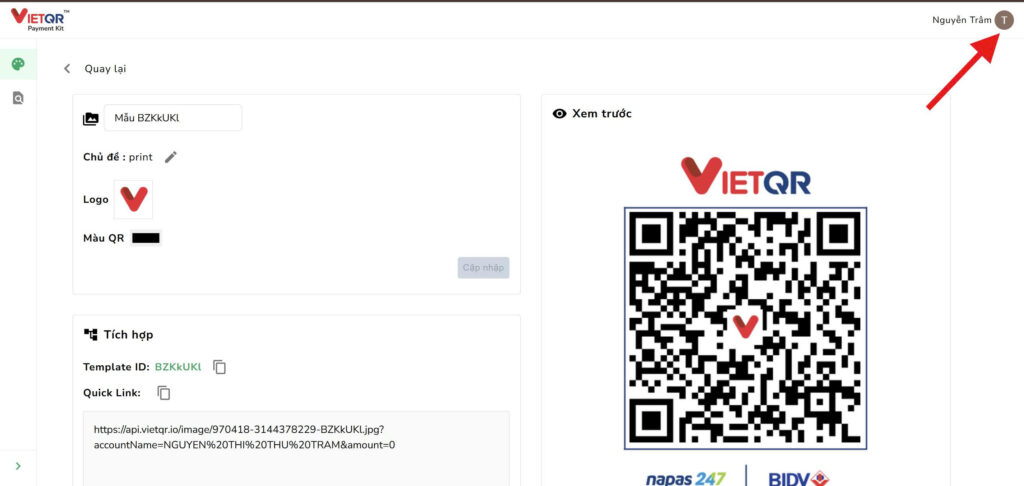
Step 3: Go to the home screen → Tap the icon in the top-right corner
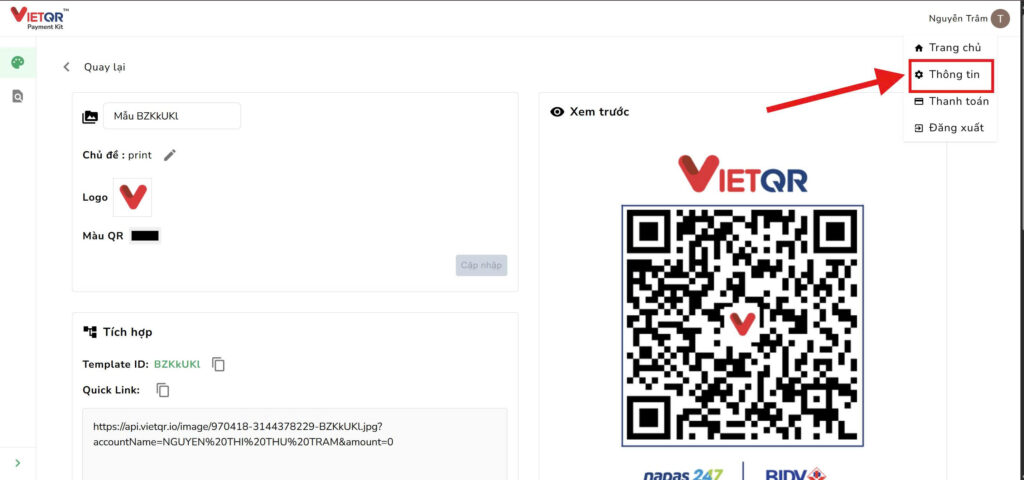
Tap on the information button:
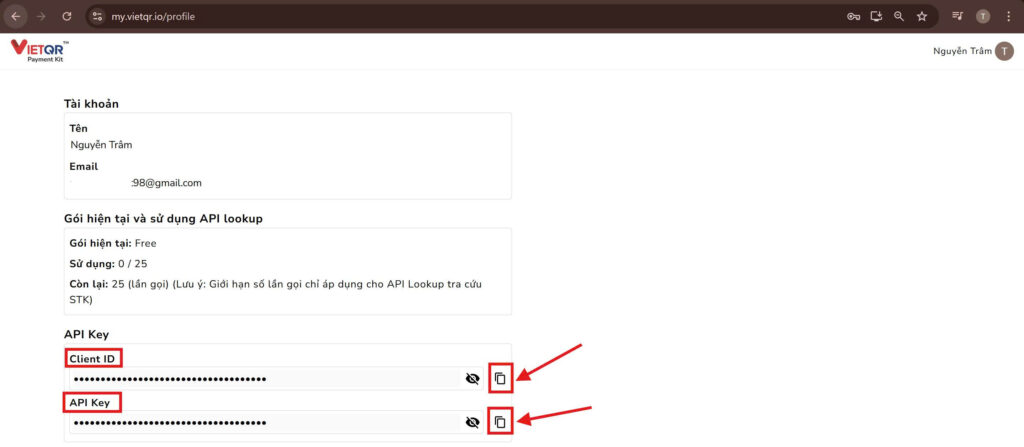
Step 4: Copy the two pieces of information below
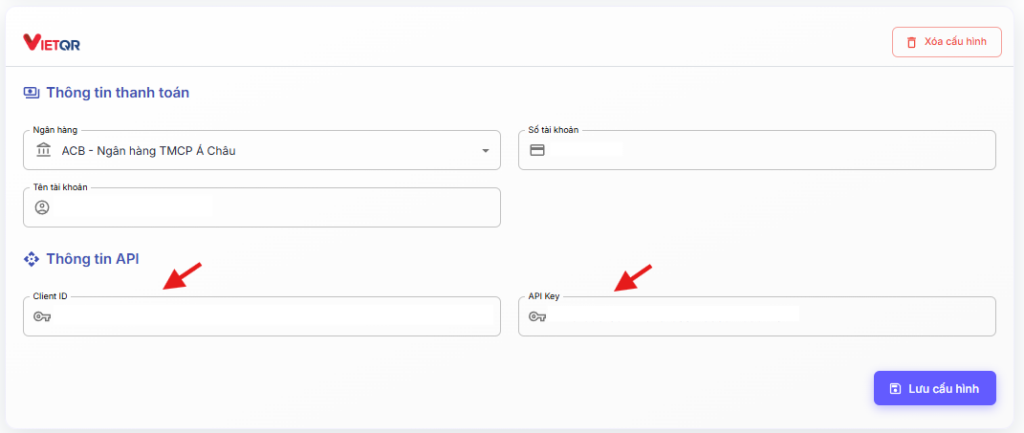
And paste them into these two fields on the store management page: https://store.analy.co/ => VietQR offline settings
After completing the configuration, you can:
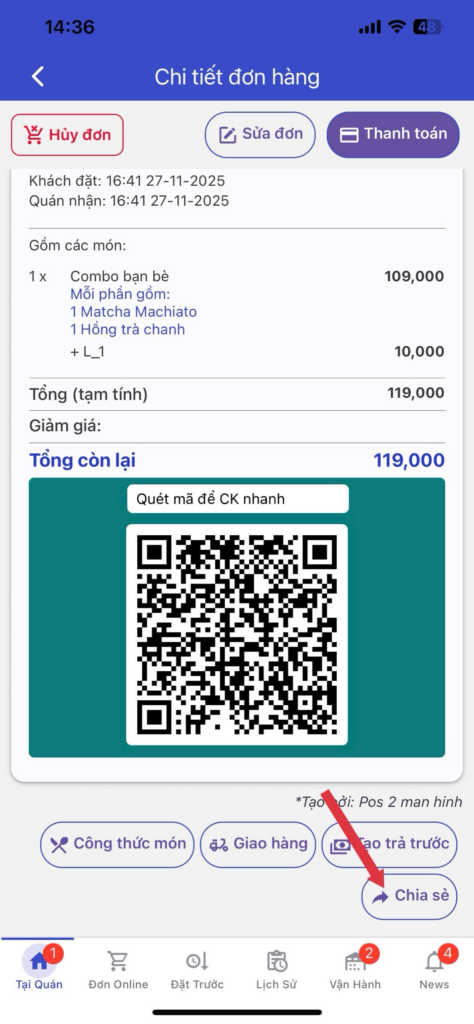
– Tap Place Order to generate an offline QR code below the order details → tap Share to send the order image to customers via Zalo, Facebook, or messaging apps. Customers simply download the image containing the QR payment code and upload it to their banking app to complete the payment quickly.
Instruction link: https://youtube.com/shorts/0AfmecVDSK8?feature=share
User guide
With offline QR payment codes, customers can make bank transfers more conveniently, while store owners can save on transaction costs.
Suitable for scenarios where customers need to pay immediately, as the QR payment code is printed instantly on the bill, or for online orders, where the store generates the QR payment code directly in the order details and shares it with the customer.
To use this feature, the account must have:
At resto feature: Allows the store to create direct sales orders for customers (including dine-in, takeaway, or delivery orders). After the store taps Place Order, an offline QR code can be generated from the order details.
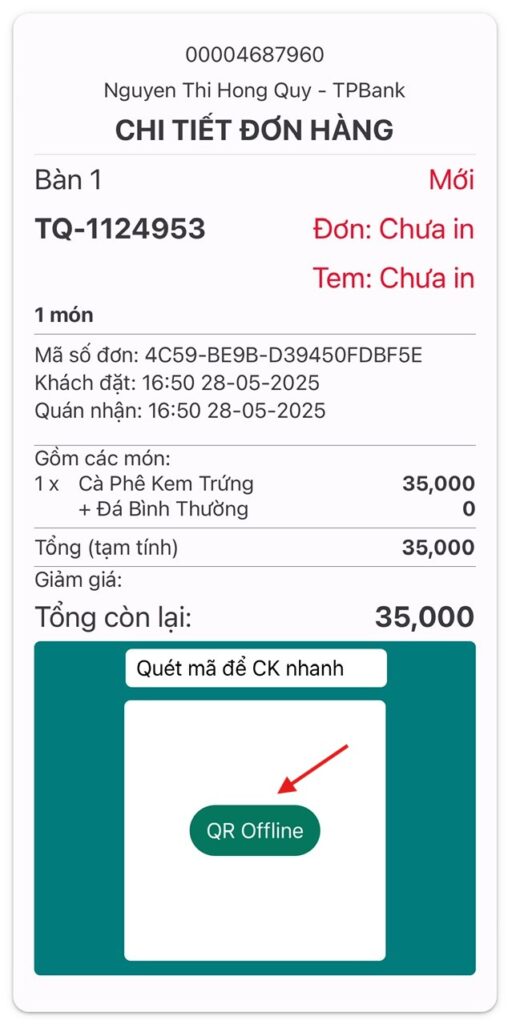
The store can tap the Share button to send the order image along with the QR payment code. When customers scan the QR code, all payment information will be automatically filled in.
Additionally, if the store uses a receipt printer, after generating the offline QR code and printing the order, the printed bill will also include the QR code as shown below.

- To print a long receipt (on the left) that includes detailed order information and the offline QR code, follow these steps: Select items & place the order → open the order details → generate the offline QR code → print the order.
- To print a short receipt (on the right) that only shows the QR code and time, follow these steps: Select items & tap Pay Now → switch to the Offline Card/Bank Transfer tab → generate the offline QR code → tap Print.
For any additional support, please message the support team directly on our Facebook page: Analy - F&B Order management application.