
4. Tạo đơn giao hàng và mã QR thanh toán
Benefits of the feature:
- Tập trung toàn bộ thông tin đơn hàng của quán từ bán online trên các Food-apps tới bán trưc tiếp để dễ dàng quản lý, tổng hợp hơn.
- Create menus and orders directly on the Analy screen; no need to switch between multiple management apps.
- Direct sales invoices are also printed automatically; can print for different kitchen areas.
- Manage full customer information for direct orders: Name, Phone number, Number of orders, Canceled orders...
- For delivery orders, the store doesn’t need to open a separate shipping app — you can operate directly on Analy with GrabExpress.
1. Kích hoạt thông tin
To activate t resto feature, you can do it directly in the app Analy on mobile devices or on computer at the store management page https://store.analy.co/
To start creating an in-store menu and orders, please follow these steps:
- Mở thanh Menu bên trái => Vào phần Cài đặt cửa hàng => Nhập thông tin trong mục THÔNG TIN QUÁN để kích hoạt tính năng Tại quán:
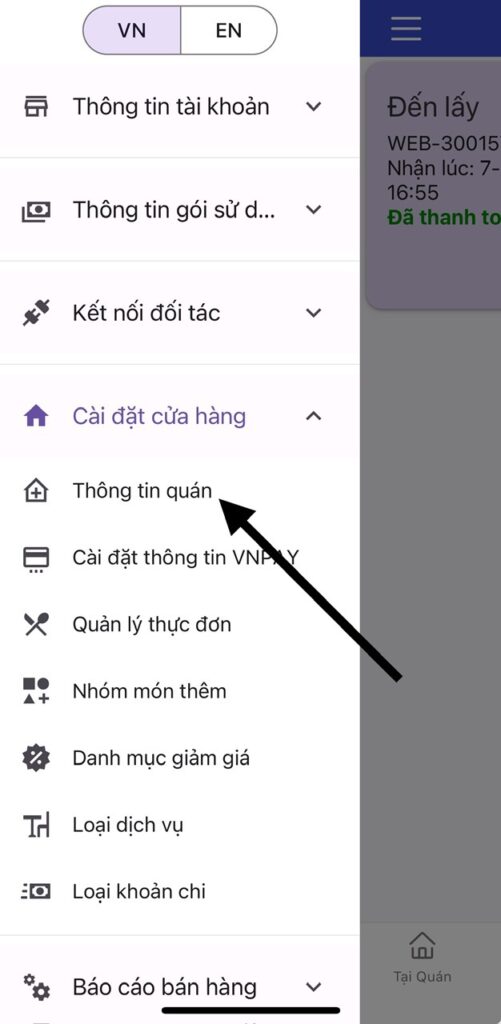
⛔MANDATORY: Enter store information first before creating the items below.
☑️ In the Address field, try to select your store’s location based on the map's suggestions, to ensure the most accurate shipping fee calculation.
☑️ Restaurant name will be used to generate an automatic website link. If your store name is too long and you want a shorter link, please contact the admin to update it as desired.
☑️ You must create a service type before creating orders.
➡️ Save & log out, exit the app and log in again to proceed to the next steps.
2. Tạo và đồng bộ menu
Hệ thống hỗ trợ 2 cách tạo menu:
- Copy menu từ tài khoản Grab về và điều chỉnh giá bán trực tiếp :
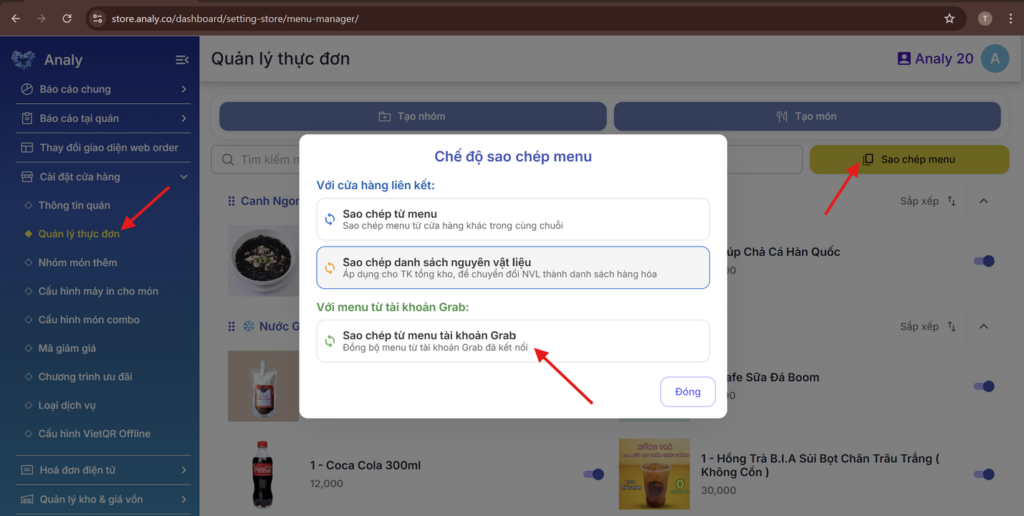
Đăng nhập tài khoản Analy trang quản lý cửa hàng sau: https://store.analy.co/ => Vào mục Quản lý thực đơn => chọn Sao chép menu => chọn sao chép menu từ tài khoản Grab.
- Tạo menu thủ công:
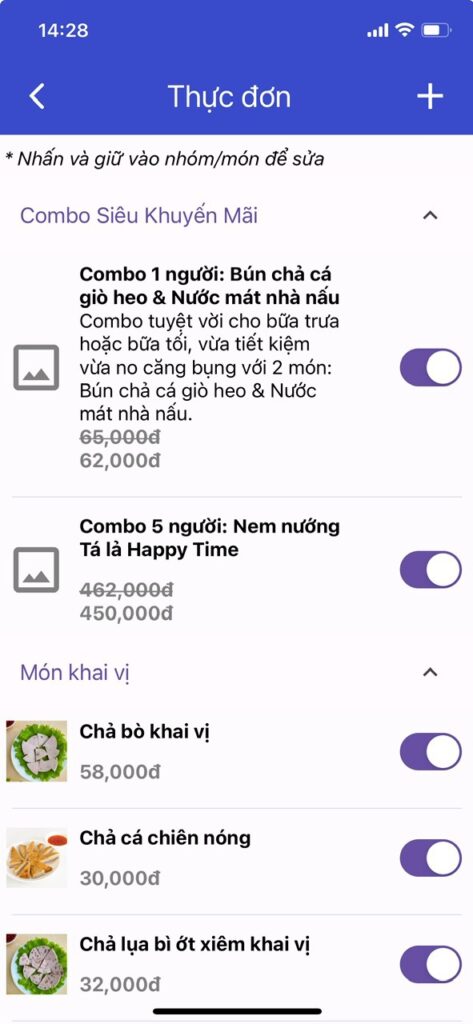
Click the + sign to create GROUPS DISH first (e.g., Coffee, Milk tea, Main dishes, Side dishes...)
Then create DISH, including basic information such as:
Dish name, category, promotional crossed-out price
Detailed description, dish photo... => All updates are instantly reflected on the store’s website, so make it presentable. see more.
Swipe right if the item is sold out or unavailable.
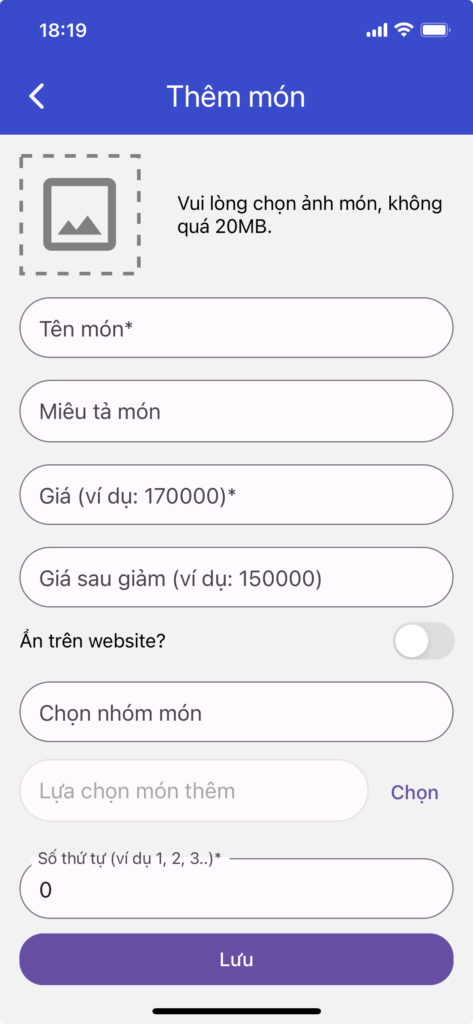
- Discounted price for creating: crossed-out price promotions.
- Hide on website: For stores using website features — if enabled, the dish only shows in the in-store menu, not on the website.
- Add-ons: Link with “Add-on groups” (e.g., for milk tea, add toppings like boba, pudding, flan...)
- Order number: Optional; leaving it at 0 means new items are sorted below older ones. If desired, you can set 1, 2, 3... to customize display order.
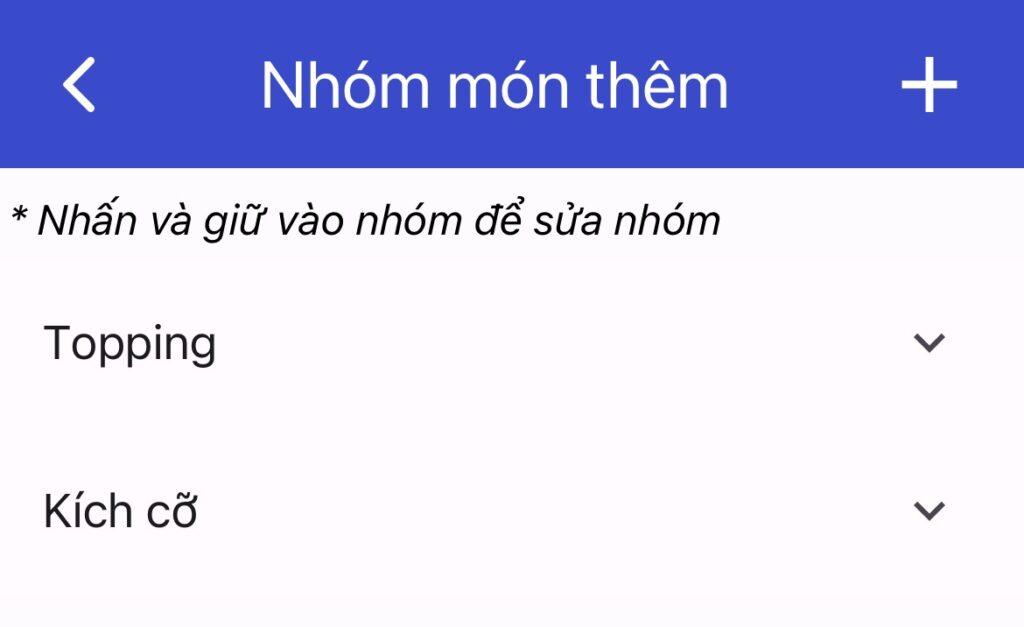
Create add-on groups (e.g., Toppings, Sizes...) to link with specific items 👉 to increase upsell opportunities.
To link: After creating an Add-on group => Go to the DISH you want to link => Select: Add-ons.
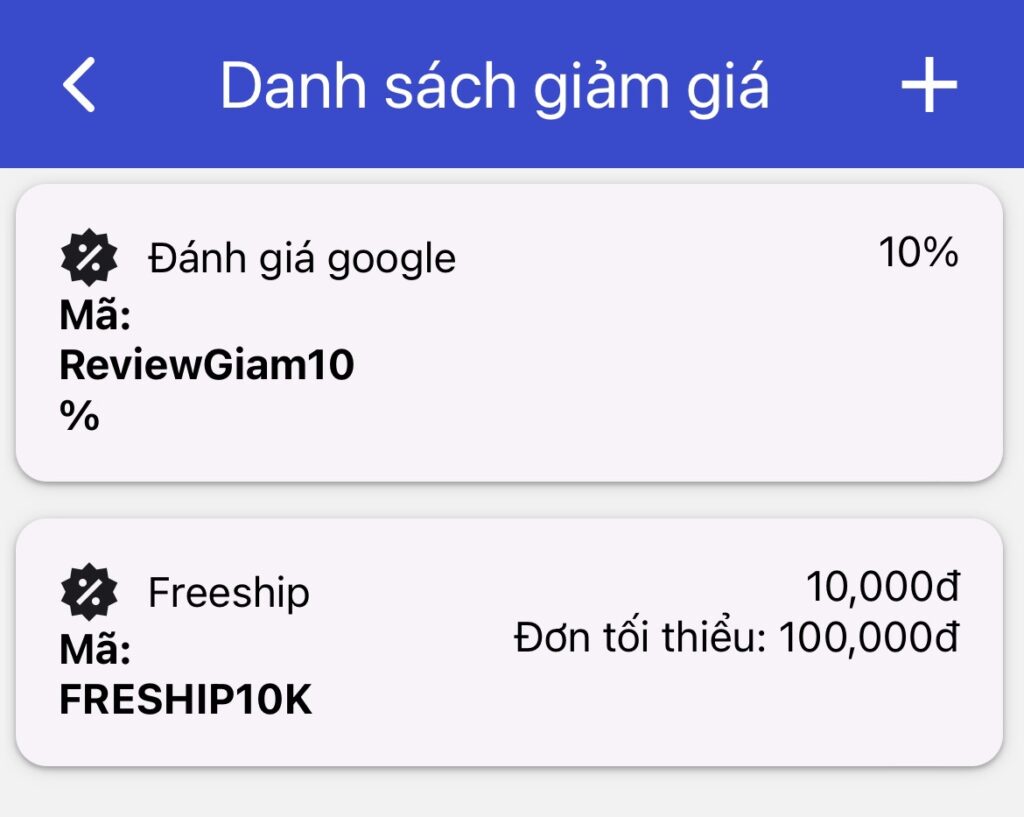
To make your store more appealing, create a variety of promotions:
Click the + sign to create promotions/discount codes. For example:
Discount 5,000 VND for orders from 100,000 VND => Enter Value: 5,000, Minimum Order: 100,000
If you want to support shipping fee => swipe right to enable: Is this a shipping discount code?
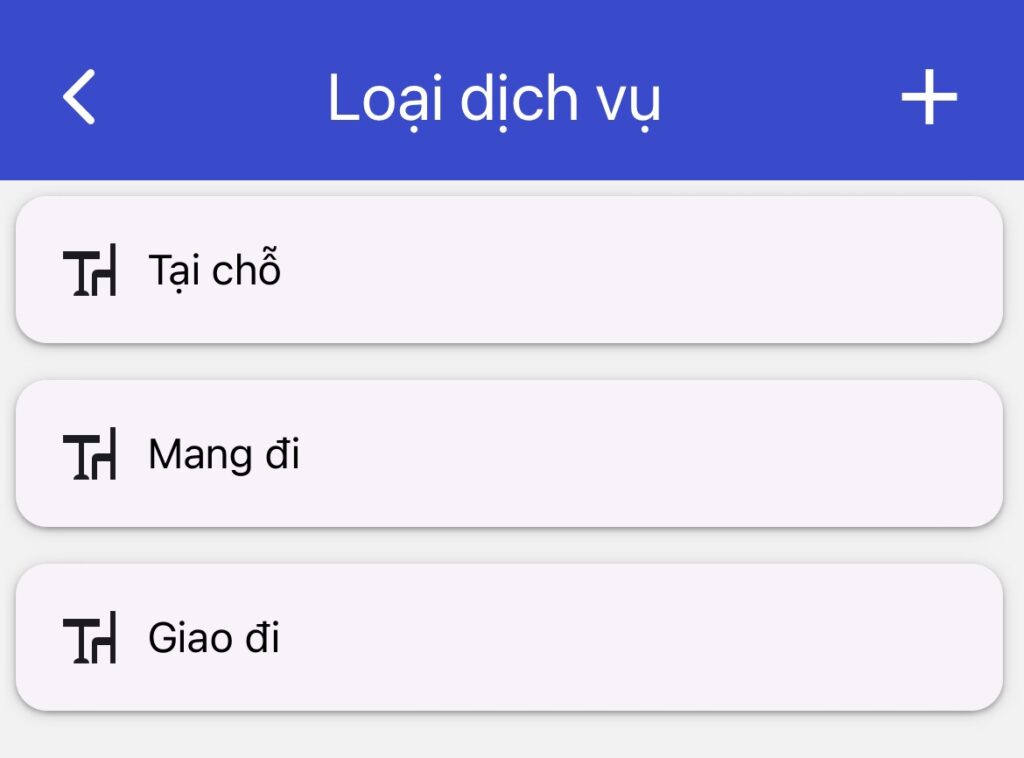
Click the + sign to create service types such as:
- Dine-in: Customers eat at the store
- Takeaway: Customers come to pick up the order
- Delivery: Order is shipped to customers
- Or create a list: Table 1, Table 2, Table 3...
3. Vận hành đơn hàng
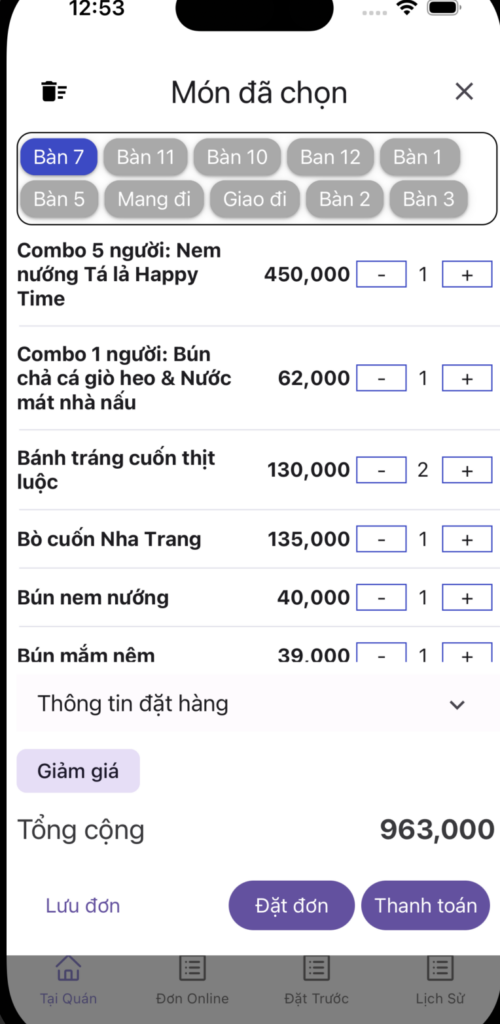
After setting up the menu info, users can go to:
👉 First box: Choose service type: Table 1, Table 2, Delivery, Pickup...
👉 Order Info: If customers want delivery, enter address, phone number...
👉 Discount: Select the discount code to apply.
The following buttons can be used independently tùy vào từng trường hợp, không cần bấm theo thứ tự:
👉 Nút Lưu đơn để lưu đơn hàng nhưng không in, khi khách chưa chốt đơn.
👉 Nút Order delivery để lưu đơn hàng và in tự động.
👉Nút Thanh toán để thực hiện thanh toán ngay. Sau khi hoàn thành thanh toán thì thực hiện in tự động.
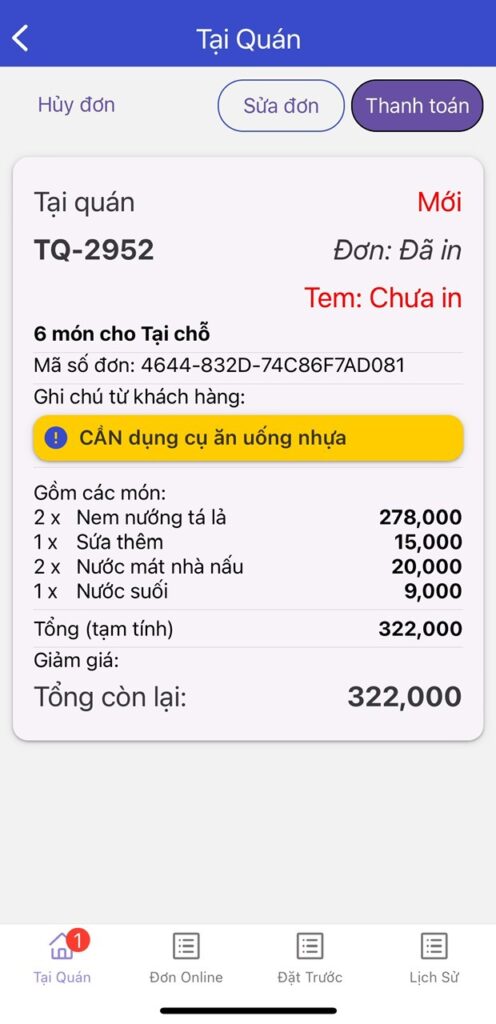
After placing the order, users can tap on each order to:
👉 Cancel order: Appears in the order history.
👉 Edit Order: Add/remove items, edit recipient info for delivery.
👉 Pay order
*Với đơn hàng ĐÃ bấm hoàn thành, thì không chỉnh sửa trên app được, mà sẽ chỉnh sửa trên trang quản lý cửa hàng
- Vào muc Báo cáo tại quán >> Đơn hàng và doanh thu
- Có thể Hủy đơn và cập nhật hình thức thanh toán cửa đơn
4. Tạo đơn giao hàng và mã QR thanh toán
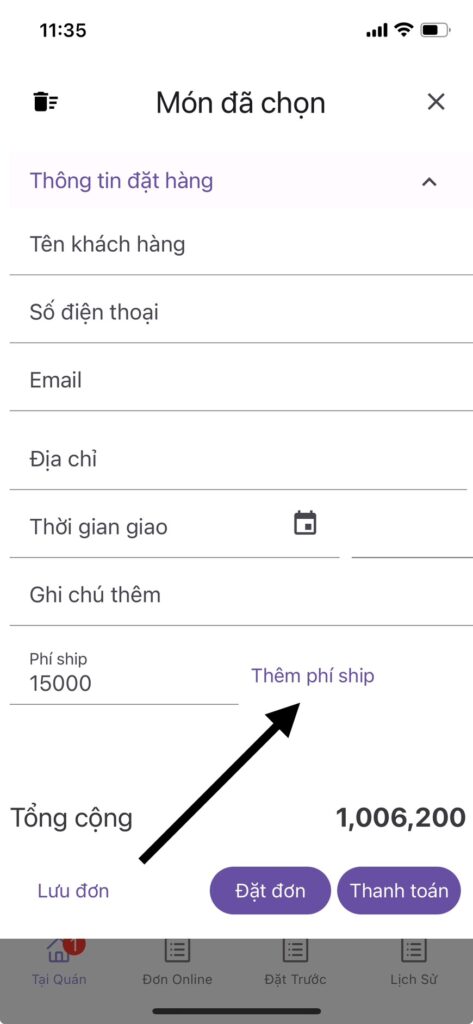
Hệ thống hỗ trợ 2 phương thức giao hàng:
- Book shipper qua dịch vụ Grab Express: Quán có thể bấm giao hàng để sử dụng dịch vụ GrabExpress – Giao hàng thực phẩm thì phí ship sẽ được cập nhật tự động vào đơn hàng.
- Thêm phí ship thủ công: nếu quán muốn sử dụng app giao hàng khác hoặc sử dụng shipper nội bộ thì có thể cập nhật phí ship vào mục này để báo khách hàng toàn bộ thông tin đơn hàng bao gồm phí ship nhé.
- Tạo mã QR thanh toán:
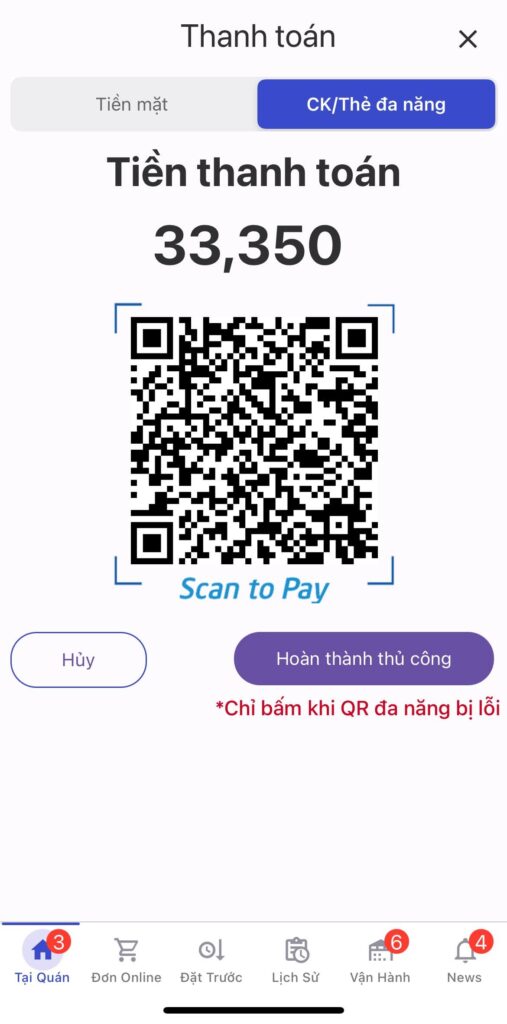
Với hình thức thanh toán chuyển khoản, người dùng có thể lựa chọn một trong 2 hình thức thanh toán như sau:
- Tích hợp mã QR thanh toán offline vào tài khoản: Thì bill sẽ in ra mã QR thanh toán sẽ có thông tin số tài khoản ngân hàng của quán. Nhưng hệ thống sẽ không thông báo trạng thái giao dịch thành công chưa, người dùng cần tự đối chiếu trên app ngân hàng và hoàn thành đơn hàng.
- Tích hợp mã QR thanh toán đa năng của Zalopay: Thì bill in ra sẽ có chứa mã QR thanh toán tới tài khoản ví Zalopay của quán, đồng thời hệ thống tự động hoàn thành đơn hàng, khi khách hàng chuyển khoản thành công, mà nhân viên không cần thao tác gì thêm. Đây là tính năng có tính phí.
5. Tạo đơn trả trước
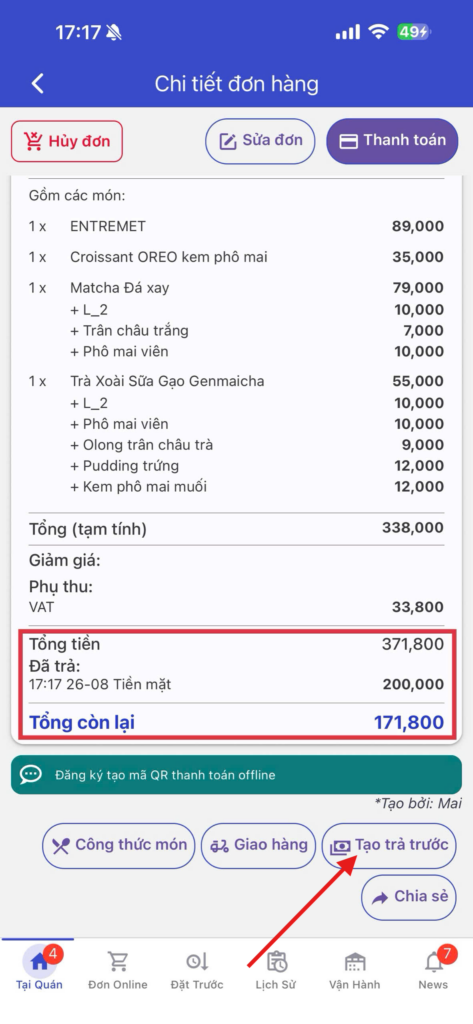
- Tính năng phù hợp với đơn hàng khách hàng đã đặt cọc trước, khách hàng thanh toán nhiều phương thức (thanh toán 1 phần tiền mặt, 1 phần chuyển khoản),…
- Hệ thống ghi nhận lịch sử đã thanh toán trả trước
6. Tạo lại đơn hủy
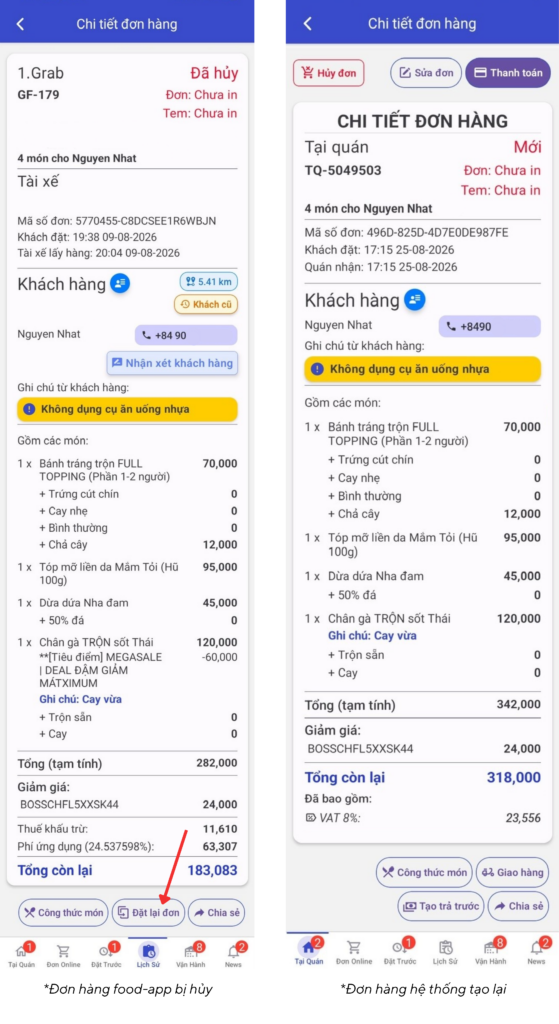
- Với đơn hàng food-app bị hủy, quán có thể liên hệ lại khách hàng và bấm đặt lại đơn.
- Hệ thống tự động tạo lại đơn hàng với thông tin đơn hàng, mã giảm giá, thông tin khách hàng, ghi chú,… chính xác, không cần phải thao tác thủ công có thể sai sót.
7. Quản lý các loại báo cáo
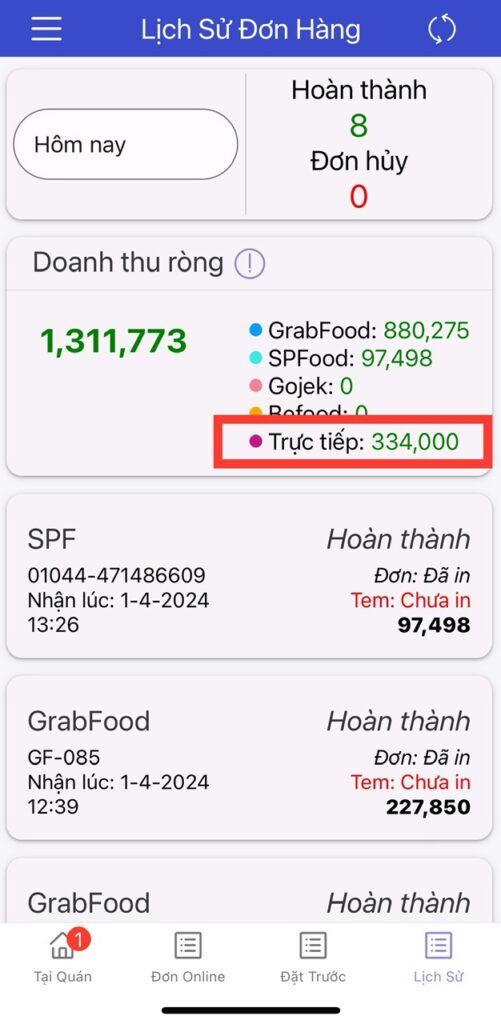
After the order is paid, the revenue will be added to the total Net revenue in the Order history section.
- Lưu ý: với tài khoản Analy đã thiết lập mã PIN, doanh thu ở mục Lịch sử sẽ bị ẩn.
Chi tiết về cách thiết lập mã PIN, hiển thị doanh thu khi bị ẩn,… xem tại đây.
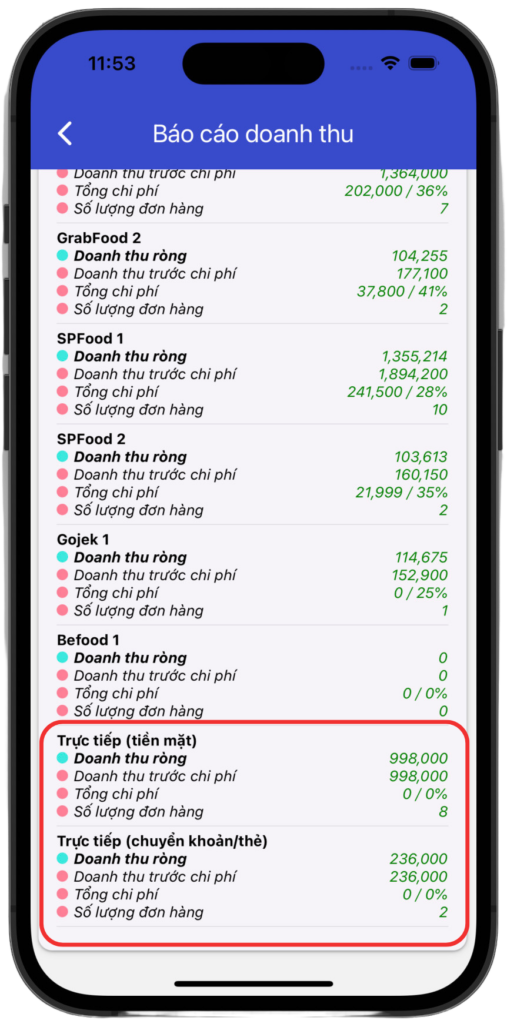
Để quản lý, người dùng có thể xem các thông tin báo cáo như sau:
- Vào thanh menu 3 gạch => chọn Báo cáo bán hàng => Revenue report
- Để hiểu hơn các thông số trong mục báo cáo doanh thu, có thể xem thêm chi tiết tại trang: các mục trong báo cáo doanh thu
- Để xem báo cáo chuyên sâu, chọn theo khoảng thời gian, tải báo cáo,… thì cần truy cập trang store management page: => mục Báo cáo chung
Tham khảo thêm các thông tin tính năng khác tại đây, hoặc liên hệ page Facebook Analy để được hướng dẫn cụ thể hơn.
️